Read Unix timestamps with the right unit and time zone
A log value looks like a date, but interpreting milliseconds as seconds sends it far from the event you are investigating.

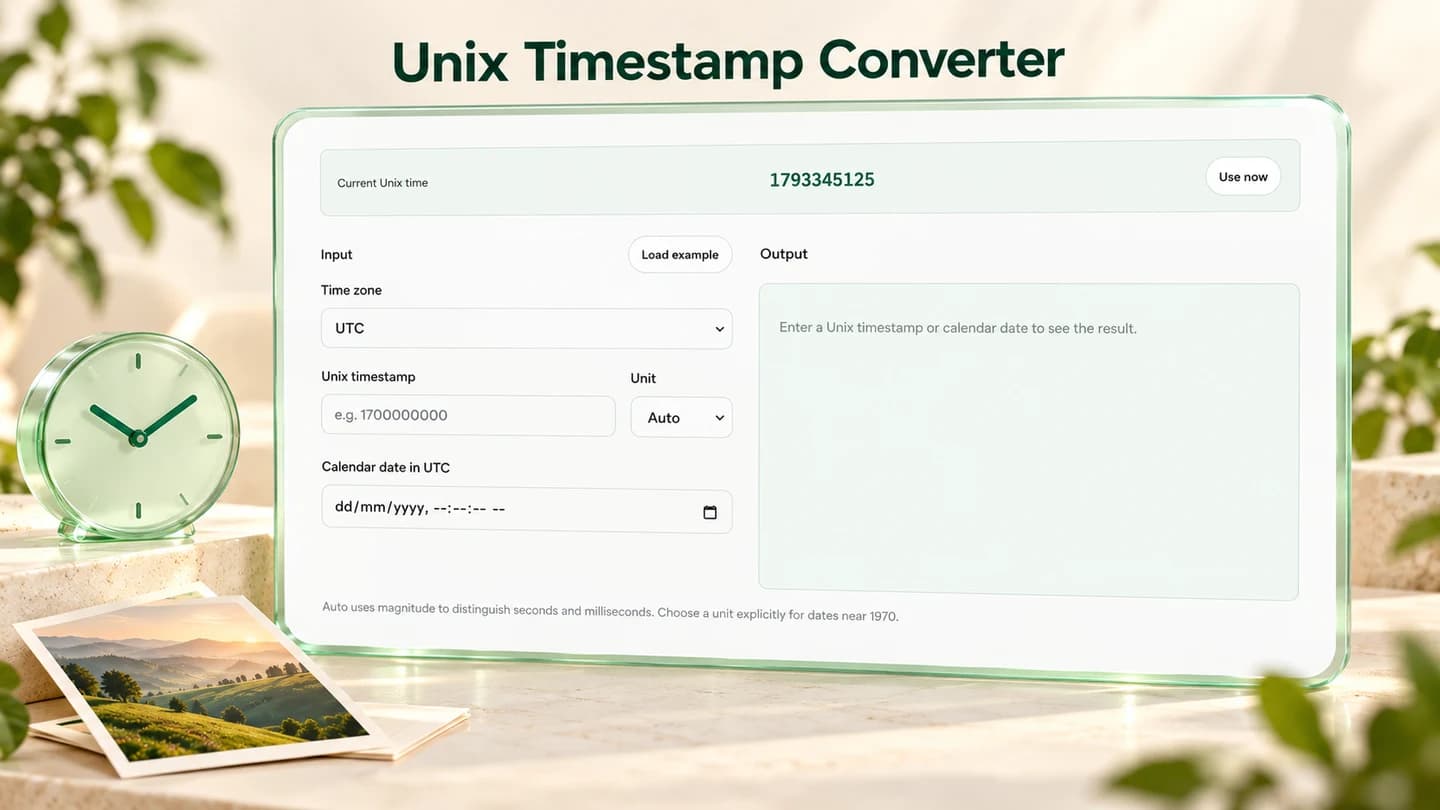
A log value looks like a date, but interpreting milliseconds as seconds sends it far from the event you are investigating. Even with the right unit, a local date can differ from UTC. Record the unit and display zone before comparing timestamps from different systems.
This guide uses Klyvero Tools Unix Timestamp Converter for a focused workflow: read Unix timestamps with the right unit and time zone. The aim is a result you can inspect and use with confidence, while keeping the source available for corrections.
Open the tool to follow this Unix Timestamp Converter workflow in your browser.
Check the receiving system’s representation rules
Before generating or converting a value, identify the form the receiving application expects. A value can be valid in one representation and rejected in another. Keep units, separators, capitalization and any required prefix with your notes so the result remains understandable after it leaves the browser.
Use a public or invented sample to learn the controls before working with a real workflow. Save the relevant settings alongside the result when reproducibility matters. Compare the output with the receiving system’s documented rules, then test a small example there. A successful local operation establishes only what this tool did; it does not prove that another application will interpret the result as you intend.
Choose settings for the task
Unix time represents an instant counted from 1970-01-01T00:00:00Z. Auto mode detects the unit by magnitude, which is convenient for common contemporary timestamps but can be ambiguous for early dates or unusually small millisecond values. Choose seconds or milliseconds explicitly when the source specification tells you which one it uses.
Use Unix Timestamp Converter step by step
- Identify whether the source uses seconds or milliseconds.
- Select an explicit unit when it is known.
- Choose the display time zone and convert.
- For reverse conversion, interpret the date in the intended zone.
- Compare the UTC result and save the unit with the value.
Work through a small representative input before applying the operation more broadly. Keep track of the settings you chose so an unexpected result can be reproduced and corrected.
A practical example
Timestamp zero in seconds corresponds to 1970-01-01T00:00:00.000Z. A zone west of UTC can display a date in December 1969 for that same instant. This is a display difference rather than a changed timestamp. For debugging, record an ISO UTC representation alongside the selected local-zone display.
Understand the limitations
Auto unit detection is a heuristic. Nonexistent daylight-saving times are rejected; an ambiguous repeated time uses the matching offset found by the converter. Confirm the intended offset when ambiguity matters.
Keep the result only as long as your workflow needs it and store any value that must be recoverable in your normal system of record. A generated value or converted payload is not a backup strategy. Recheck the receiving application after pasting, because extra spaces or a missing prefix can change how it is interpreted.
Review the result before using it
When converting a readable date back to epoch, confirm the zone in which the date should be interpreted. Check both the resulting numeric unit and the UTC instant. Daylight-saving transitions can make some wall-clock times nonexistent or repeat them twice, so inspect the offset in those cases.
The live tool describes local browser processing. Processing assets may still need to download before the operation can run. Save the finished output before clearing the tool or leaving the tab, and confirm that the copy you use is the reviewed result.
Frequently asked questions
Why can one timestamp have different calendar dates?
Different zones display the same instant with different offsets. Crossing midnight changes the displayed day without changing the instant.
How should I validate the output?
Check its representation and meaning in the application that will consume it. Retain the settings, source and any unit information needed to understand the result; generation or conversion alone does not validate another system’s rules.
Does a completed operation mean the result is ready to share?
Open or inspect the saved output first. Confirm the settings, selected content and destination requirements, and keep the source until the reviewed copy works as intended.
Useful next steps
- JSON Formatter: A related developer workflow when your next task needs it.
- Base64 Encode / Decode: A related developer workflow when your next task needs it.
- Explore Klyvero Labs products: Browse our apps and browser tools.
Ready to try this workflow? Open Unix Timestamp Converter, start with a representative input and review the saved result. Try the tool free.
Back to all articles