Compare two drafts and keep the changes in context
Two versions of a paragraph can look almost identical while changing a key date or instruction.

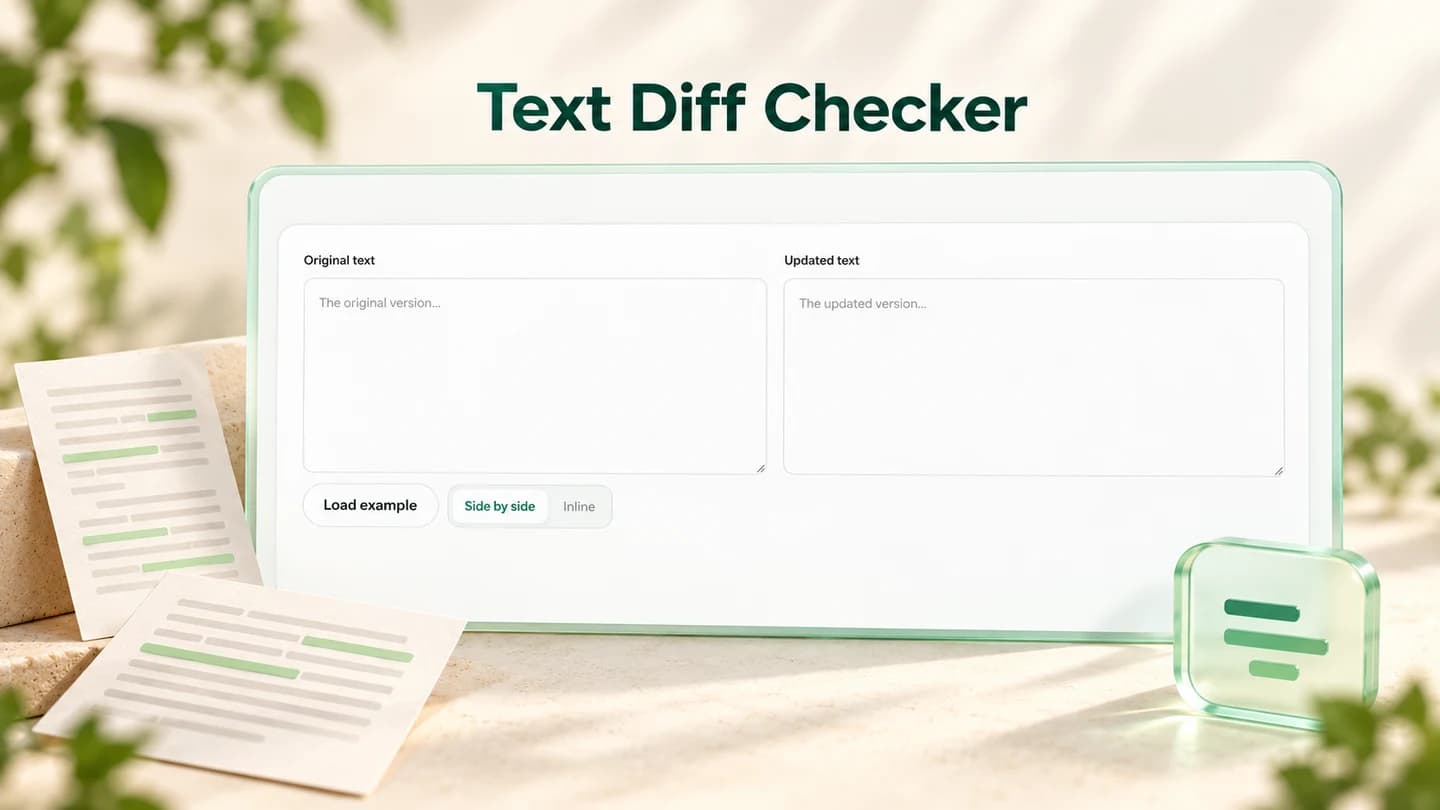
Two versions of a paragraph can look almost identical while changing a key date or instruction. A text diff helps locate what changed, but it works best when the two inputs represent comparable versions. Name the old and new copies before reviewing the highlights.
This guide uses Klyvero Tools Text Diff Checker for a focused workflow: compare two drafts and keep the changes in context. The aim is a result you can inspect and use with confidence, while keeping the source available for corrections.
Open the tool to follow this Text Diff Checker workflow in your browser.
Keep the source and the intended text structure
Paste only the material relevant to the task and keep a saved source copy. Plain-text tools operate on the characters, line breaks and spaces you provide; they do not carry the complete layout of a Word document. A heading copied from a formatted page may contain line breaks that become meaningful in a line-based operation.
Try a short passage with known results before replacing a long draft or list. Include the cases that matter to your work, such as mixed capitalization, surrounding spaces or punctuation. Review the beginning and end of the output after copying it back. Keep the approved result in your normal writing or data file rather than treating an open browser tab as storage.
Choose settings for the task
Use side-by-side view to keep versions separate, or inline view to read removals and additions together. Green identifies added text and red identifies removed text, with labels as well as color. Whitespace is included, so a reformatted document can produce many changes even when the words remain similar.
Use Text Diff Checker step by step
- Paste the earlier text and revised text into their respective fields.
- Use consistent formatting when comparing structured text.
- Run the comparison and choose side-by-side or inline view.
- Review additions and removals in their full sentence context.
- Save the approved final copy in your normal document workflow.
Work through a small representative input before applying the operation more broadly. Keep track of the settings you chose so an unexpected result can be reproduced and corrected.
A practical example
Changing The fox is quick to The fox is very quick adds the word very. That simple example shows the direction of the comparison: swapping the inputs would describe the same edit as a removal. For an actual policy draft or product description, verify which field contains the approved earlier copy before interpreting the result.
Understand the limitations
The combined text limit is 5MiB. A local worker performs the comparison, and Cancel can stop a large run. The tool locates differences; it does not decide whether the new wording is accurate.
When copying the final result, check the first and last entries or sentences and save the approved version. A transformation can be reversible only while you retain the original. A browser tab is a working space; it should not become the only record of a completed draft.
Review the result before using it
Read the complete sentence around each change. A small replacement such as may to must can matter more than a large stylistic rewrite. For JSON or code, format both versions consistently first so indentation differences do not obscure changed values. This remains a text comparison rather than a semantic code review.
The live tool describes local browser processing. Processing assets may still need to download before the operation can run. Save the finished output before clearing the tool or leaving the tab, and confirm that the copy you use is the reviewed result.
Frequently asked questions
Does it ignore whitespace changes?
No. Whitespace is part of the comparison. Consistent formatting can make meaningful edits easier to see.
Will this replace the need to review the writing?
No. A text transformation follows its configured rules. Read the output in context and verify the receiving application’s own requirements before replacing your source or submitting the result.
Does a completed operation mean the result is ready to share?
Open or inspect the saved output first. Confirm the settings, selected content and destination requirements, and keep the source until the reviewed copy works as intended.
Useful next steps
- Word Counter: A related text workflow when your next task needs it.
- Remove Duplicate Lines: A related text workflow when your next task needs it.
- Explore Klyvero Labs products: Browse our apps and browser tools.
Ready to try this workflow? Open Text Diff Checker, start with a representative input and review the saved result. Try the tool free.
Back to all articles