Check your word and character limits before you submit
Count the right parts of your draft, understand spaces and emoji, and use reading-time estimates carefully before copying the final text into its destination.

A submission box asks for 150 words. A short description has a character limit. A presentation needs to fit its speaking slot. Each problem involves length, but the number you need to check is different. Editing against the wrong count can leave a draft too long even after several rounds of cuts.
Klyvero Tools Word Counter shows live word, character, sentence and paragraph totals, plus estimated reading and speaking times. Students, writers and small business teams can use it to review plain text before submission. Begin with the destination’s instructions, then use the counter as a drafting aid.
Open the tool to check your draft as you edit and copy the finished text.
Decide what belongs in the count
Read the requirement before pasting your draft. Check whether it includes the title, references, captions or notes. The tool counts the text you provide; it cannot decide which parts your school, editor or publishing form intends to include. Select the relevant passage rather than assuming the entire document is required.
For a short form field, a character total may matter more than words. Spaces and line breaks contribute to the main character count. The separate count without whitespace answers a different question. Keep the original document open so you can apply edits without losing headings or formatting that plain text does not carry.
Check and edit a draft step by step
- Open Word Counter and type or paste the passage you want to measure. Use Load example first if you want to explore with public text.
- Read the live Words and Characters totals. Compare the correct total with the requirement you wrote down.
- For a character-based limit, enter its value in Character limit. Review the displayed count against that limit as you revise.
- Read the draft aloud or review it for clarity. Remove repetition before cutting details the reader needs.
- Copy the finished text into its destination and check the destination’s own final count before submitting.
Save a copy in your normal writing application before clearing the text or leaving the page. The tool holds your writing in the tab and does not provide a saved writing history. A successful count is useful only if you keep the finished version.
Understand differences between counters
Word boundaries use language-aware segmentation when the browser supports it, with a whitespace-based fallback. Different writing applications can apply different rules to punctuation, compound words and languages. If two totals disagree, inspect a short passage to understand the difference instead of adding or deleting random words.
Characters can be more complicated than individual keystrokes. A combined emoji can consist of several underlying characters while appearing as one visible symbol. Browser support affects how those symbols are counted, and publishing platforms may apply their own rules for links and emoji. Treat the receiving platform’s count as the final check for a strict field limit.
Example: a small draft with a character limit
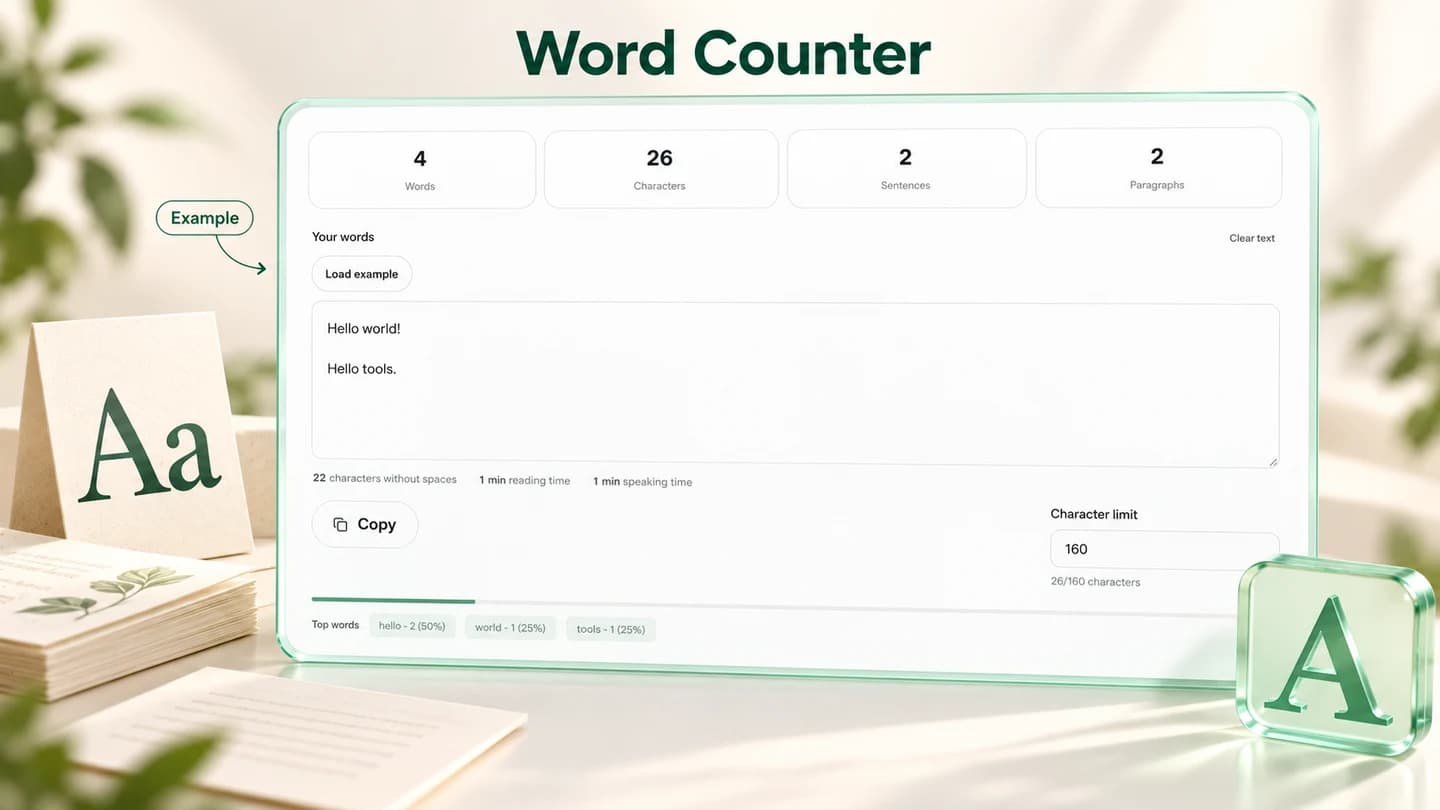
The live Load example action inserts “Hello world!” followed by a blank line and “Hello tools.” In Chrome, the tool reports 4 words, 26 characters including whitespace and 22 without whitespace. It also reports 2 sentences and 2 paragraphs. The cover shows that actual sample with a character limit of 160.
The paragraph total counts non-empty lines, not only blocks separated by a blank line. Sentence totals use punctuation heuristics; abbreviations can affect them. These are helpful signals for checking a draft, but they do not replace reading it. If you paste text with a line break after every line, inspect the paragraph total in that context.
Use reading and speaking times as estimates
Reading time uses 200 words per minute and speaking time uses 130. The displayed estimates round up, so the four-word example shows one minute for each. That does not mean four words actually require a full minute to read. A small rounded value is a planning label rather than a stopwatch measurement.
For a presentation, rehearse with a timer. Pauses, slide changes, audience questions and technical terms can change delivery time. For an article, consider how much explanation the subject requires. A shorter draft is not automatically easier to understand if every sentence becomes dense or unfamiliar.
Revise for usefulness, then make the final check
Top words can help you notice repeated terms, but a repeated product name or essential technical term may belong in the draft. Read the surrounding sentences before replacing it with a vague synonym. Cut filler, repeated introductions and unnecessary setup while retaining the facts that answer the reader’s question.
After editing, copy the final passage and verify that its beginning and ending arrived intact. Check the destination’s counter, preview and formatting. Processing happens in your browser, with no account required, but the tab is not a backup. Keep the approved text in the place where you normally manage your writing.
Frequently asked questions
Does the main character count include spaces?
Yes. It includes spaces and line breaks. A separate total excludes whitespace.
Why does the count differ from my writing app?
Word segmentation and character rules can differ, especially for punctuation, emoji and links. Use the destination’s final count for its limit.
Is the speaking time exact?
No. It is a rounded-up estimate at 130 words per minute. Rehearse with a timer when a delivery slot matters.
Will the tool save my draft?
No saved writing history is provided. Copy your text before clearing the tool or leaving the tab.
Useful next steps
- Explore Klyvero Tools: Find other browser utilities for text and documents.
- Text Diff Checker: Compare an edited passage with its previous version.
Ready to check your next draft? Paste the relevant text, review the right count and verify it at the destination. Try the tool free.
Back to all articles