Remove duplicate lines without scrambling your list
A list collected from several sources can repeat labels, filenames or contact entries.

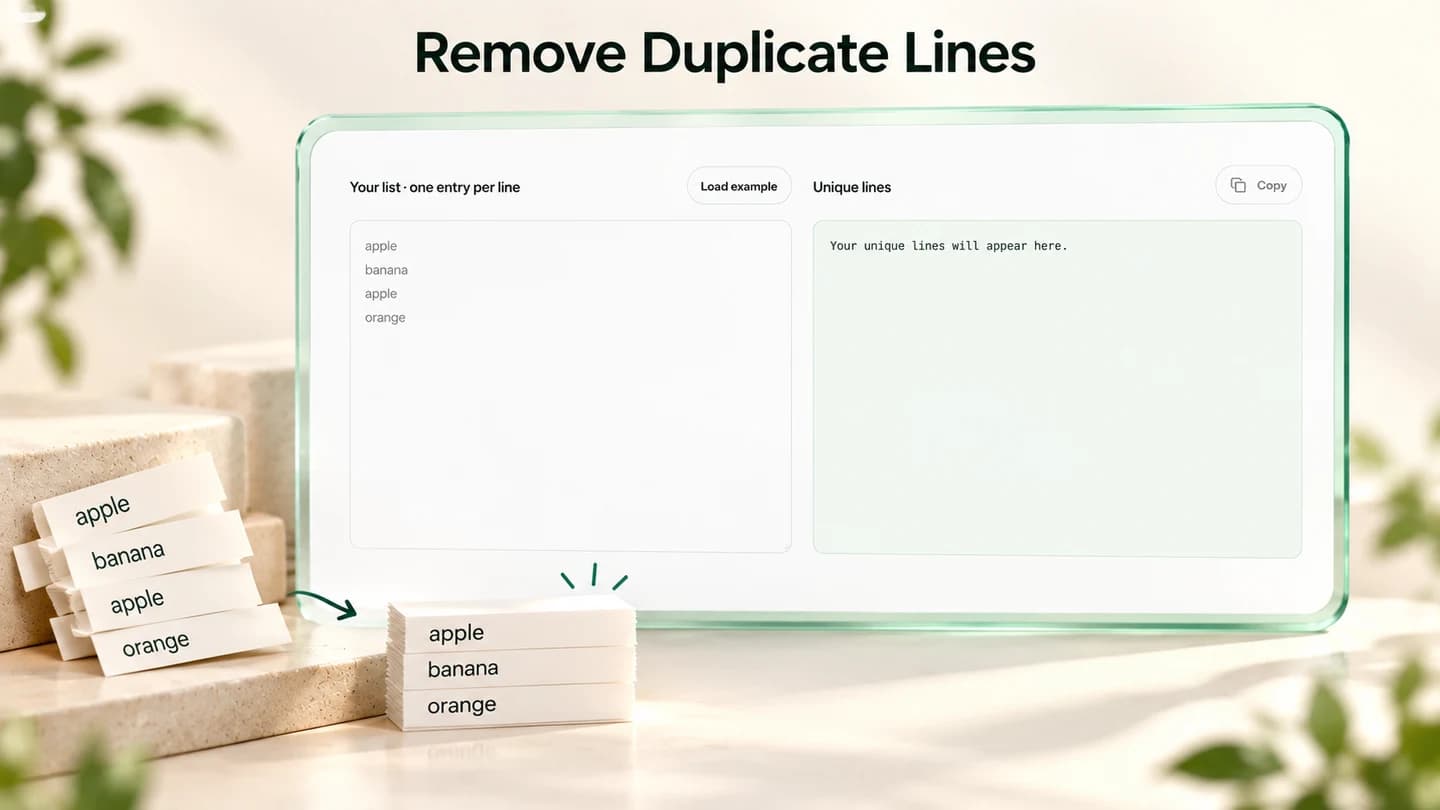
A list collected from several sources can repeat labels, filenames or contact entries. Removing duplicates sounds simple until a case difference or a space changes which entries match. Decide what counts as the same record before cleaning the list.
This guide uses Klyvero Tools Remove Duplicate Lines for a focused workflow: remove duplicate lines without scrambling your list. The aim is a result you can inspect and use with confidence, while keeping the source available for corrections.
Open the tool to follow this Remove Duplicate Lines workflow in your browser.
Keep the source and the intended text structure
Paste only the material relevant to the task and keep a saved source copy. Plain-text tools operate on the characters, line breaks and spaces you provide; they do not carry the complete layout of a Word document. A heading copied from a formatted page may contain line breaks that become meaningful in a line-based operation.
Try a short passage with known results before replacing a long draft or list. Include the cases that matter to your work, such as mixed capitalization, surrounding spaces or punctuation. Review the beginning and end of the output after copying it back. Keep the approved result in your normal writing or data file rather than treating an open browser tab as storage.
Choose settings for the task
The first occurrence is kept by default. Case-sensitive matching distinguishes Alice from alice; turning it off treats them as matches. Trimming ignores surrounding spaces, and Ignore empty lines controls blank entries. Leave sorting off when first-occurrence order carries meaning, such as a priority list or sequence of filenames.
Use Remove Duplicate Lines step by step
- Paste one record on each line.
- Decide whether surrounding spaces and case should matter.
- Choose how to handle empty lines and leave sorting off if order matters.
- Remove duplicates and inspect representative retained entries.
- Copy the result to a saved file before leaving the tab.
Work through a small representative input before applying the operation more broadly. Keep track of the settings you chose so an unexpected result can be reproduced and corrected.
A practical example
Consider three lines containing apple, a space-padded apple and APPLE. Trimming makes the first two match. Case-insensitive matching can make all three match. If these are display labels rather than identifiers, that may be useful. If letter case is meaningful to the receiving system, keep case-sensitive matching enabled and review the separate entries.
Understand the limitations
The comparison uses complete lines, not individual words or the validity of a contact. A cleaned address can still be invalid, and two lines describing one person in different formats may remain different.
When copying the final result, check the first and last entries or sentences and save the approved version. A transformation can be reversible only while you retain the original. A browser tab is a working space; it should not become the only record of a completed draft.
Review the result before using it
Compare a small known duplicate group before processing a long list. Check the first retained spelling and the final order. Counts can tell you how many lines were removed, but cannot tell you whether two distinct real-world records were accidentally treated as the same.
The live tool describes local browser processing. Processing assets may still need to download before the operation can run. Save the finished output before clearing the tool or leaving the tab, and confirm that the copy you use is the reviewed result.
Frequently asked questions
Will cleaning sort my list automatically?
Only when Sort A–Z is enabled. Otherwise the first occurrence of each retained line keeps its original position relative to the others.
Will this replace the need to review the writing?
No. A text transformation follows its configured rules. Read the output in context and verify the receiving application’s own requirements before replacing your source or submitting the result.
Does a completed operation mean the result is ready to share?
Open or inspect the saved output first. Confirm the settings, selected content and destination requirements, and keep the source until the reviewed copy works as intended.
Useful next steps
- Word Counter: A related text workflow when your next task needs it.
- Case Converter: A related text workflow when your next task needs it.
- Explore Klyvero Labs products: Browse our apps and browser tools.
Ready to try this workflow? Open Remove Duplicate Lines, start with a representative input and review the saved result. Try the tool free.
Back to all articles