Change text case without breaking names or identifiers
A pasted heading is all capitals, or a label needs to become a developer-friendly identifier.

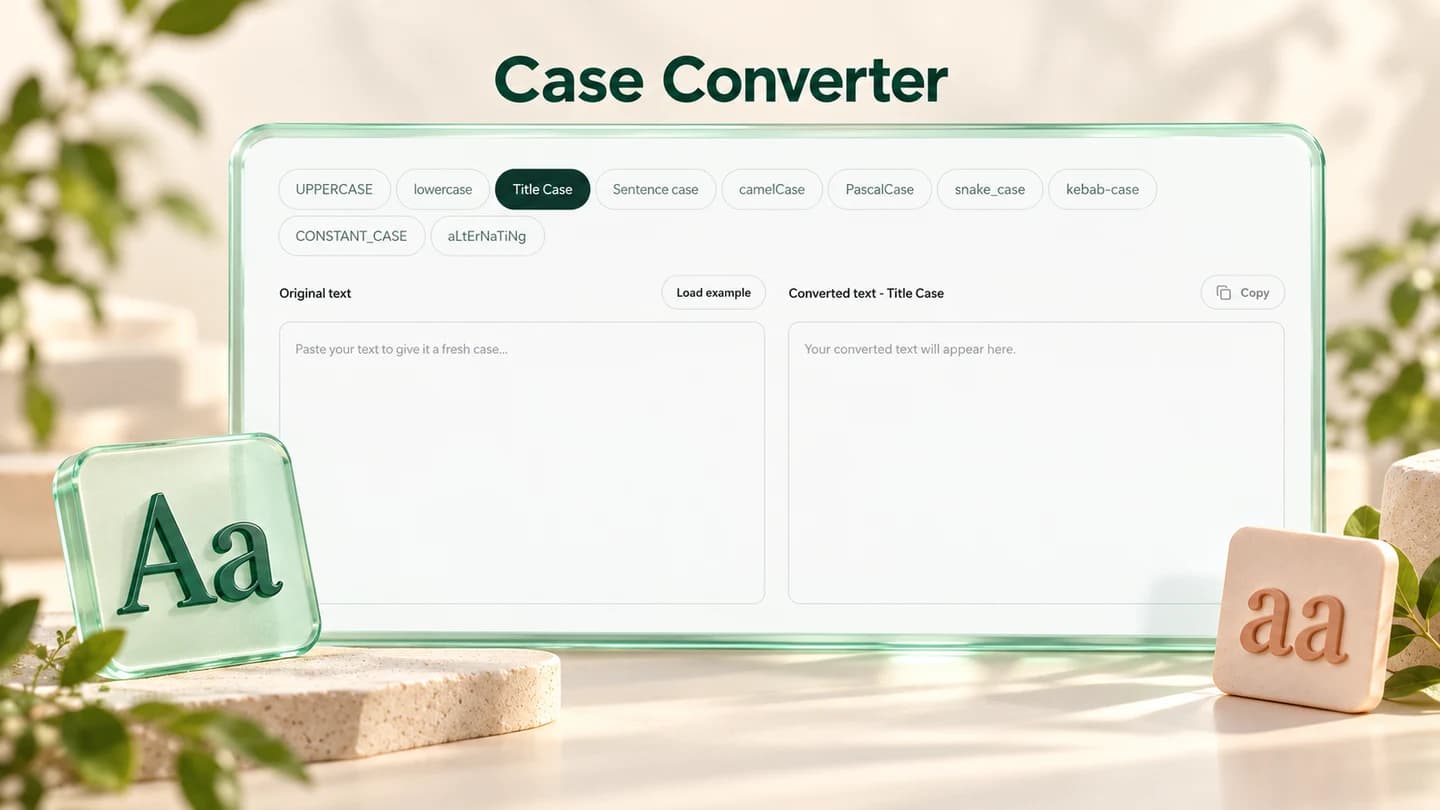
A pasted heading is all capitals, or a label needs to become a developer-friendly identifier. A case converter can remove repetitive typing, but different modes change more than capitalization. Start by deciding whether you are formatting human-readable text or producing a machine-readable name.
This guide uses Klyvero Tools Case Converter for a focused workflow: change text case without breaking names or identifiers. The aim is a result you can inspect and use with confidence, while keeping the source available for corrections.
Open the tool to follow this Case Converter workflow in your browser.
Keep the source and the intended text structure
Paste only the material relevant to the task and keep a saved source copy. Plain-text tools operate on the characters, line breaks and spaces you provide; they do not carry the complete layout of a Word document. A heading copied from a formatted page may contain line breaks that become meaningful in a line-based operation.
Try a short passage with known results before replacing a long draft or list. Include the cases that matter to your work, such as mixed capitalization, surrounding spaces or punctuation. Review the beginning and end of the output after copying it back. Keep the approved result in your normal writing or data file rather than treating an open browser tab as storage.
Choose settings for the task
Uppercase, lowercase, title and sentence case suit ordinary text transformations. Identifier styles include camel, Pascal, snake, kebab and constant case; alternating case is also available. Title case here capitalizes each word rather than applying a publication style guide. Review proper names and acronyms after any transformation.
Use Case Converter step by step
- Paste the source passage or identifier phrase.
- Choose a text style or naming convention.
- Inspect punctuation, acronyms and proper names.
- Compare identifiers with the receiving system’s rules.
- Copy the reviewed output without overwriting your only original.
Work through a small representative input before applying the operation more broadly. Keep track of the settings you chose so an unexpected result can be reproduced and corrected.
A practical example
The phrase hello useful world becomes helloUsefulWorld in camelCase and hello_useful_world in snake_case. CONSTANT_CASE produces HELLO_USEFUL_WORLD. Those variants may name related concepts, but the receiving codebase decides which representation is acceptable. Check its naming convention before replacing an existing key.
Understand the limitations
Title case does not implement an editorial style such as APA. Sentence boundaries are based on punctuation, and identifier modes can remove or replace separators. Keep the separate source input for another pass.
When copying the final result, check the first and last entries or sentences and save the approved version. A transformation can be reversible only while you retain the original. A browser tab is a working space; it should not become the only record of a completed draft.
Review the result before using it
For a heading, look for brand names, initials and short connecting words that need manual attention. For code or data keys, inspect separators and compare the transformed name with references elsewhere. A mechanically correct identifier can still break a connection when another system expects the original spelling.
The live tool describes local browser processing. Processing assets may still need to download before the operation can run. Save the finished output before clearing the tool or leaving the tab, and confirm that the copy you use is the reviewed result.
Frequently asked questions
Can the tool apply a publication’s title style?
No. Title case capitalizes each word. Adjust the result according to the publication’s rules and its treatment of names and short words.
Will this replace the need to review the writing?
No. A text transformation follows its configured rules. Read the output in context and verify the receiving application’s own requirements before replacing your source or submitting the result.
Does a completed operation mean the result is ready to share?
Open or inspect the saved output first. Confirm the settings, selected content and destination requirements, and keep the source until the reviewed copy works as intended.
Useful next steps
- Word Counter: A related text workflow when your next task needs it.
- Remove Duplicate Lines: A related text workflow when your next task needs it.
- Explore Klyvero Labs products: Browse our apps and browser tools.
Ready to try this workflow? Open Case Converter, start with a representative input and review the saved result. Try the tool free.
Back to all articles