Place a signature image on the correct PDF page
A document needs a visible signature mark in a particular field, and you already have an image of the signature.

A document needs a visible signature mark in a particular field, and you already have an image of the signature. Placement is the main task: the image should sit in the intended area without covering the instructions or another person’s field.
This guide uses Klyvero Tools Sign PDF for a focused workflow: place a signature image on the correct PDF page. The aim is a result you can inspect and use with confidence, while keeping the source available for corrections.
Open the tool to follow this Sign PDF workflow in your browser.
Identify pages by their original positions
Keep the original PDF and make a note of the pages involved in your task. A viewer’s page position can differ from the number printed inside the document because a cover or introduction comes first. When a control accepts page ranges, use the original positions expected by that control and check the first affected thumbnail.
Use a small representative section when exploring a new operation. Include a normal text page and a page with a diagram or scan if the document has both. A successful first page does not establish that every page has the same structure. After exporting, check the final page as well, because a missing appendix or unintended range can be easy to overlook.
Choose settings for the task
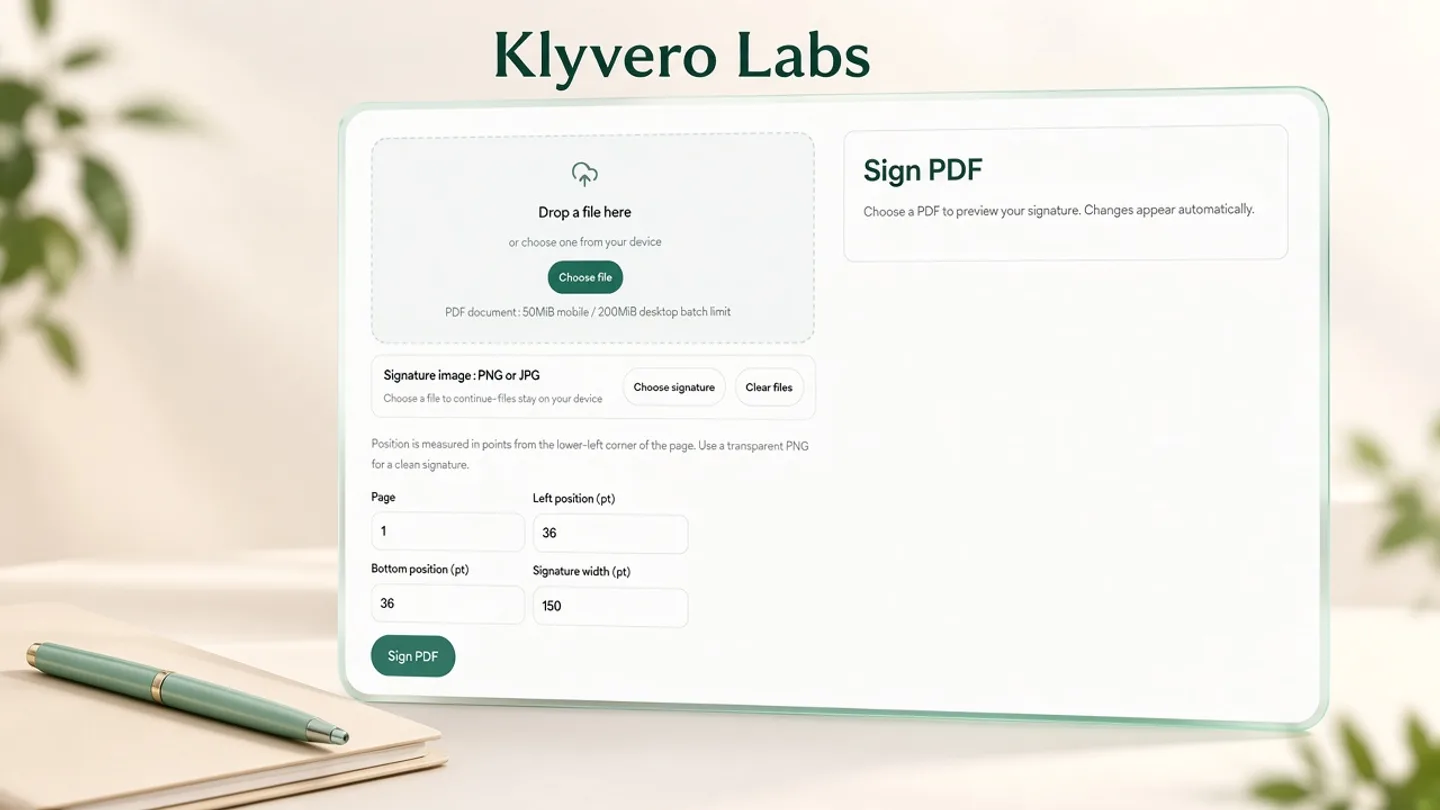
This workflow accepts an existing PNG or JPG signature image. Choose the PDF page and position the image there. A transparent PNG is useful when you want the surrounding page to remain visible. There is no in-tool handwriting pad in this workflow, so prepare the image before starting.
Use Sign PDF step by step
- Choose the PDF and an existing signature PNG or JPG.
- Select the page that contains the intended field.
- Position and size the signature in the preview.
- Create and save the signed-looking copy.
- Reopen the PDF and verify page, scale and alignment.
Work through a small representative input before applying the operation more broadly. Keep track of the settings you chose so an unexpected result can be reproduced and corrected.
A practical example
For a signature near the bottom of page two, select that original page position and use the preview to place the mark above the signature line. Adjust its size so it is readable without crowding the date or name fields. Save a copy and reopen page two to confirm the final placement.
Understand the limitations
This adds a visual signature image, not a certificate-based digital signature. It does not create cryptographic identity verification or prove that the resulting file has not changed.
A rewritten PDF can behave differently from the original at the document level. If signatures, forms, bookmarks or other interactive features matter, check them separately in a suitable viewer rather than assuming that intact page thumbnails prove everything survived. Keep signed originals when signature validity matters.
Review the result before using it
Inspect the selected page and its neighbors to confirm the signature was not added to the wrong location. Check the image background, scale and edge clarity. Keep the original PDF and the source signature image separately for your own document workflow.
The live tool describes local browser processing. Processing assets may still need to download before the operation can run. Save the finished output before clearing the tool or leaving the tab, and confirm that the copy you use is the reviewed result.
Frequently asked questions
Can I draw a signature directly here?
This workflow uses an existing signature image. It does not include a handwriting pad or certificate-based signing.
Do I still need the original PDF?
Yes. Keep it for comparison and for any document features needed later. A downloaded copy is a separate result, and a change that solves one task may not preserve every behavior of the source.
Does a completed operation mean the result is ready to share?
Open or inspect the saved output first. Confirm the settings, selected content and destination requirements, and keep the source until the reviewed copy works as intended.
Useful next steps
- Merge PDF: A related pdf workflow when your next task needs it.
- Image to PDF: A related pdf workflow when your next task needs it.
- Explore Klyvero Labs products: Browse our apps and browser tools.
Ready to try this workflow? Open Sign PDF, start with a representative input and review the saved result. Try the tool free.
Back to all articles