How to merge PDFs into one attachment in the right order
Combine related PDFs into one ordered attachment. Learn how to arrange files, check page counts and review the combined document before sharing.

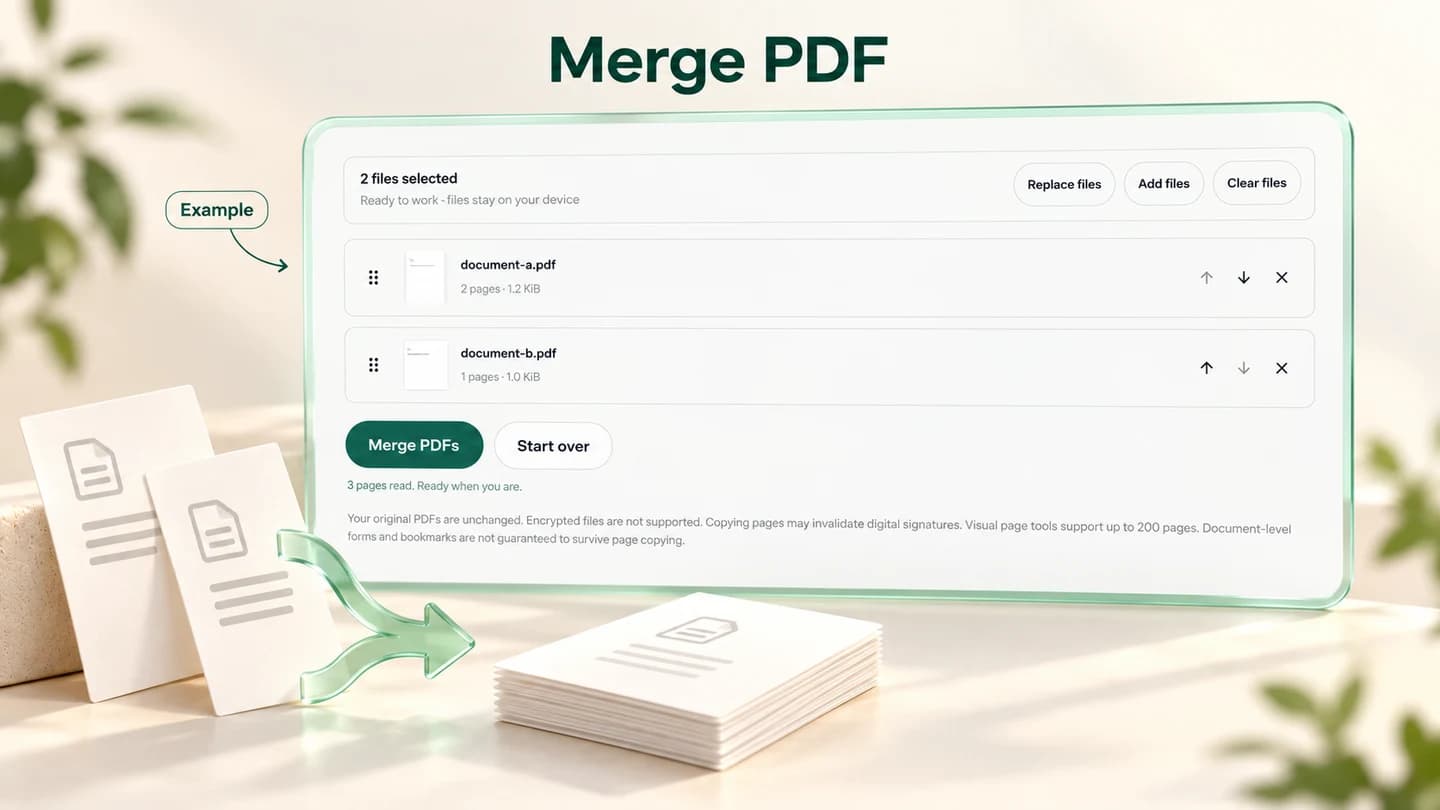
A cover letter, a report and an appendix belong together, but sending three separate attachments leaves the reader to work out where to begin. One PDF can give those documents a clear reading order and make the package easier to open, save and forward.
Klyvero Tools Merge PDF combines PDF documents in your browser. It is useful for students assembling coursework, freelancers sending a portfolio and teams collecting reports. The important part is choosing the sequence deliberately, then checking the downloaded file rather than assuming every attachment landed where you intended.
Open the tool to combine related PDF documents into one ordered attachment.
Plan the reading order before selecting files
Start by listing what the recipient needs to see first. A short introduction may belong before the main report; supporting material usually follows it. Rename working copies with simple prefixes such as 01-cover, 02-report and 03-appendix if that helps you recognize the documents. File names are an organizing aid; still check the order inside the tool.
Merge PDF takes PDF documents as input and produces a combined PDF. If a source is a photograph or a Word document, convert it into a PDF separately before building the package. Keep your original files so you can correct an individual source and rebuild the combined copy later.
Check supported files and batch limits
The live tool documents support for two or more PDFs, with up to 20 files in a batch. Its stated batch limit is 50MB on smaller devices and 200MB on desktop. These limits protect browser memory; they are not a guarantee that every device can comfortably process a large or complex document. Follow the limit displayed on your device.
Encrypted PDFs are not supported. If you have the necessary access, save an unencrypted copy through a PDF application you trust before trying again. Check that the copy opens normally. A file that happens to end in .pdf may still be damaged or unsuitable for processing.
Merge your documents step by step
- Open Merge PDF and add the PDF documents you want to combine. Choose only the files needed for this particular recipient.
- Move the document cards into the intended reading order. Check the file names and page counts against your original list.
- Merge the documents, then download the combined PDF. Keep the source PDFs until you have reviewed the result.
- Open the download in a PDF viewer. Check the first page, the boundary between each source document and the final page.
- Save the reviewed copy with a clear file name, then attach that copy to your message or submission.
The tool processes documents on your device without uploading them to a processing server, and no account is required. Processing still depends on your browser and available memory. Avoid closing the tab before the download is complete.
Example: a cover letter followed by a portfolio
Suppose your cover letter has one page and your portfolio has six. Add both PDFs and put the cover-letter card first. The expected result is seven pages: the letter on page one, followed by all six portfolio pages. This is an example of the sequence to check, rather than a measured processing result.
If you add a two-page reference document at the end, the expected total becomes nine pages. Check pages one, two, seven, eight and nine to review the beginning, the transitions and the ending. Counting pages helps catch a missing file, but also read enough of each section to confirm you selected the correct version.
Understand file order and individual page order
Merge PDF retains the complete page sequence within each source file. Placing document A before document B gives you all pages of A followed by all pages of B. It does not alternate A’s first page with B’s first page or automatically move an appendix into the middle of another document.
If your package needs individual pages interleaved, use Reorder PDF Pages afterward. If you need only a few pages from a long source, prepare those with Extract PDF Pages before assembling the final package. Choosing the right operation keeps the workflow easier to check.
Review layout, signatures and the final attachment
Copied pages retain their original dimensions and content. A portrait letter and a landscape chart can therefore remain different sizes in the same PDF. Merging does not standardize page layouts, edit the words on a page or guarantee a smaller file. Check the destination’s size limit separately before submitting.
Combining signed PDFs creates a new document and does not preserve a valid digital signature. Keep signed originals separately when their signature validity matters; do not present the merged copy as carrying the same valid signatures.
Finally, scroll through the downloaded document at a readable zoom. Look for blank pages, duplicate sections, sideways scans and outdated versions. Confirm that the attachment opens and has a recognizable name. A single file is useful when its contents are complete and arranged for the person receiving it.
Frequently asked questions
Can I merge password-protected PDFs?
Encrypted PDFs are not supported. Save an unencrypted copy using a trusted PDF app when you have the necessary access, then try again.
Will merging make every page the same size?
No. Each copied page retains its original dimensions and content, so mixed page sizes can remain in the combined document.
Can I rearrange individual pages while merging?
The merge order follows the document cards and retains the internal page sequence of each file. Use Reorder PDF Pages afterward for individual page changes.
Will digital signatures remain valid?
No. Merging produces a new document, so digital signatures from the originals cannot be relied on in the combined copy. Keep the original signed documents.
Useful next steps
- Reorder PDF Pages: Adjust individual page positions after combining your documents.
- Explore Klyvero Tools: Find the image, PDF and document utilities available in the toolbox.
- More practical guides: Browse Klyvero Labs articles for everyday digital tasks.
Ready to send one organized attachment? Choose your PDFs, arrange the documents and review the combined download. Try the tool free.
Back to all articles