Export PDF pages as JPG for everyday image sharing
A platform accepts JPG attachments but not PDFs, or a slide needs a quick page preview.

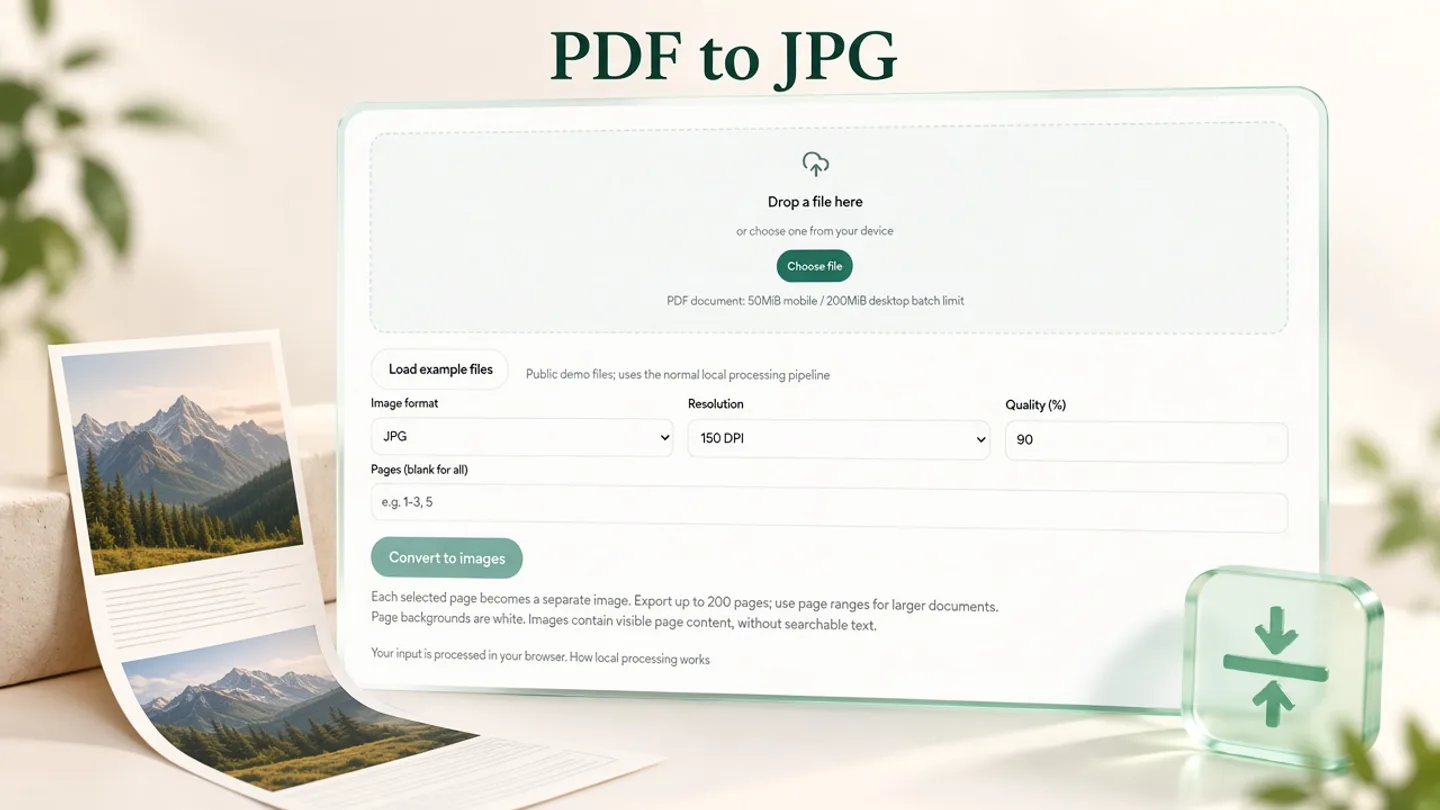
A platform accepts JPG attachments but not PDFs, or a slide needs a quick page preview. Rendering the selected pages as JPEG can fit that workflow. Choose a resolution that keeps the necessary detail readable without producing unnecessarily large pictures.
This guide uses Klyvero Tools PDF to JPG for a focused workflow: export PDF pages as JPG for everyday image sharing. The aim is a result you can inspect and use with confidence, while keeping the source available for corrections.
Open the tool to follow this PDF to JPG workflow in your browser.
Choose resolution for the way the preview will be used
The documented resolution choices include 72 DPI for small previews, 150 DPI for everyday sharing and 300 DPI for finer detail. A larger number produces more pixels for the same page dimensions, which increases memory use and often file bytes. Start with the intended display or print size rather than choosing the highest value automatically.
For a text-heavy page, inspect the smallest label at the width where readers will see it. For a photographic page, look at gradients and edges as well as the file size. Export a representative page first when a large document would otherwise create many unnecessary images. Keep enough context around selected pages so the preview does not misrepresent the document.
Choose settings for the task
The page-conversion workflow offers PNG, JPG and WebP; choose JPG for this use case. Enter original page ranges starting at one, or leave the range blank for all pages. Overlapping selections export each page once, in first-listed order. The documented limit is up to 200 pages in one conversion, with memory and output-size limits also applying.
Use PDF to JPG step by step
- Choose one supported unencrypted PDF.
- Select the original pages needed for the preview.
- Choose JPG and a suitable DPI.
- Convert and inspect the rendered page images.
- Download individual images or the complete ZIP and test the destination.
Work through a small representative input before applying the operation more broadly. Keep track of the settings you chose so an unexpected result can be reproduced and corrected.
A practical example
For a four-page brochure where only pages two and four are relevant, enter those original page positions and choose JPG. Start with 150 DPI, export and inspect a paragraph and photograph. JPEG can introduce artifacts around fine text, so compare with a PNG export when crisp small lettering matters more than file size.
Understand the limitations
Password-protected PDFs are rejected. A rendered image does not retain selectable text, links or interactive fields. Large pages and high DPI can exceed browser memory or the 200MiB output limit; use fewer pages or a lower resolution.
A set of page images is a different deliverable from a PDF. Provide the original document separately when readers need text selection, links or forms. Give the image files clear names so their order remains understandable after they are copied into a message, slide deck or publishing system.
Review the result before using it
Look at the saved JPEG rather than the PDF zoom level. Inspect letters, chart lines and gradients. A high-resolution page can still be compressed poorly, while a low-resolution page cannot regain detail simply by being enlarged later.
The live tool describes local browser processing. Processing assets may still need to download before the operation can run. Save the finished output before clearing the tool or leaving the tab, and confirm that the copy you use is the reviewed result.
Frequently asked questions
Does an image keep PDF links and selectable text?
No. The visible page becomes pixels on a white background. Keep the original PDF when its document features are needed.
Should I render pages or extract embedded pictures?
Render pages when you need their complete visible layout. Extract embedded pictures when you need separate raster assets stored inside the PDF. Vector drawings and text may not exist as separate images.
Does a completed operation mean the result is ready to share?
Open or inspect the saved output first. Confirm the settings, selected content and destination requirements, and keep the source until the reviewed copy works as intended.
Useful next steps
- Merge PDF: A related pdf workflow when your next task needs it.
- Image to PDF: A related pdf workflow when your next task needs it.
- Explore Klyvero Labs products: Browse our apps and browser tools.
Ready to try this workflow? Open PDF to JPG, start with a representative input and review the saved result. Try the tool free.
Back to all articles