Create a unique password you can keep track of
A new account needs a password, but another variation of a familiar word makes your accounts depend on the same secret.

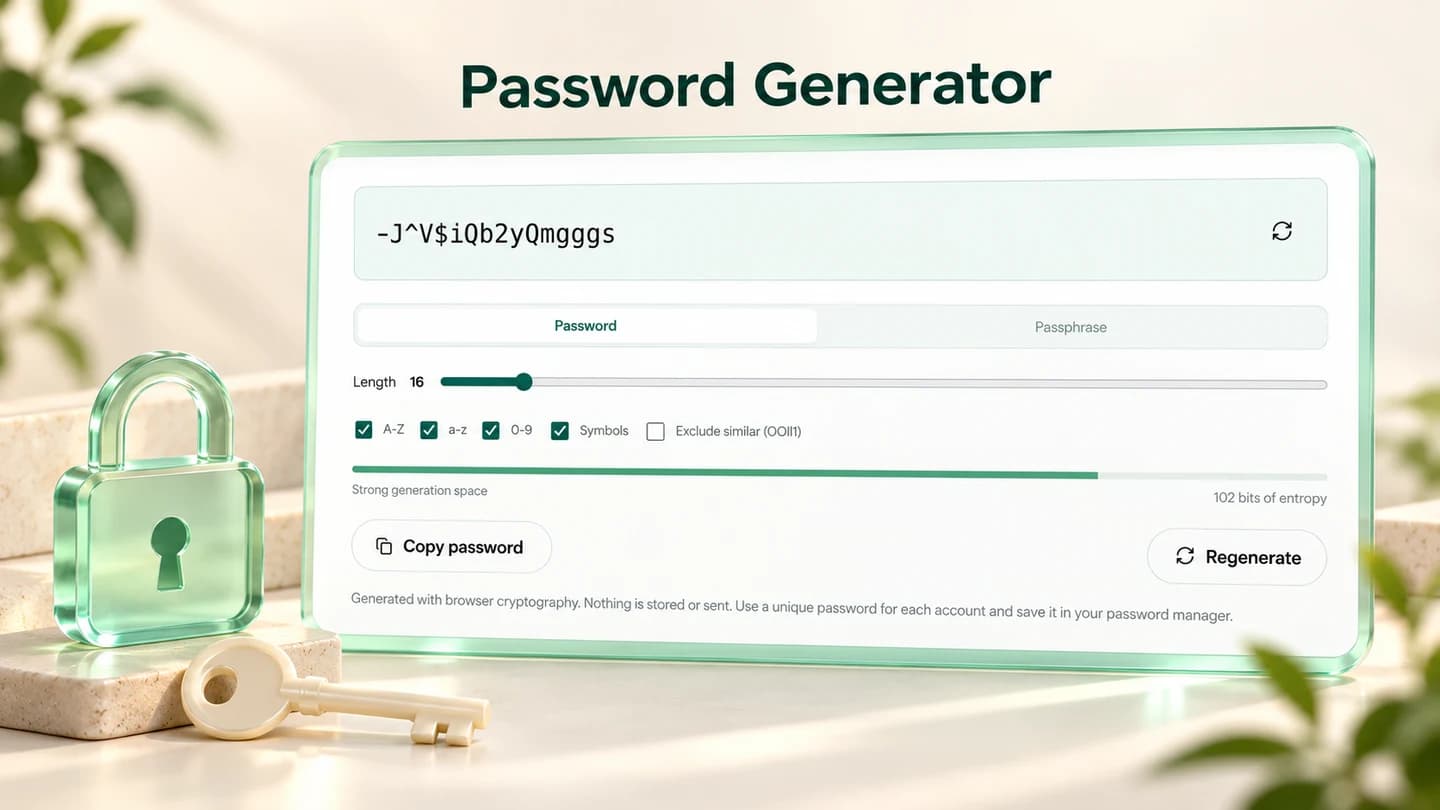
A new account needs a password, but another variation of a familiar word makes your accounts depend on the same secret. A generator is useful when it creates a fresh value and you store that value correctly. The copy-and-save step matters as much as choosing the length.
This guide uses Klyvero Tools Password Generator for a focused workflow: create a unique password you can keep track of. The aim is a result you can inspect and use with confidence, while keeping the source available for corrections.
Open the tool to follow this Password Generator workflow in your browser.
Check the receiving system’s representation rules
Before generating or converting a value, identify the form the receiving application expects. A value can be valid in one representation and rejected in another. Keep units, separators, capitalization and any required prefix with your notes so the result remains understandable after it leaves the browser.
Use a public or invented sample to learn the controls before working with a real workflow. Save the relevant settings alongside the result when reproducibility matters. Compare the output with the receiving system’s documented rules, then test a small example there. A successful local operation establishes only what this tool did; it does not prove that another application will interpret the result as you intend.
Choose settings for the task
Choose a random password when the receiving site accepts it, or a passphrase when a sequence of words suits the workflow. Follow the site’s length and character requirements before generating. The tool uses browser cryptographic randomness, includes every selected character group in random-password mode, and does not save generated values after the tab is closed.
Use Password Generator step by step
- Check the account’s length and character rules.
- Choose random-password or passphrase mode.
- Set the supported length and character options.
- Generate a new value and save it in your password manager.
- Use the saved value and confirm the account accepts it.
Work through a small representative input before applying the operation more broadly. Keep track of the settings you chose so an unexpected result can be reproduced and corrected.
A practical example
For a site that requires letters, numbers and symbols, enable the matching groups and choose a length the site permits. Generate a fresh value, save it in your password manager and paste the same saved value into the account setup. If the site rejects a symbol, adjust the allowed groups and generate again rather than manually making a repeated pattern.
Understand the limitations
The generator cannot recreate a lost value. A passphrase estimate assumes independent word choices; manually replacing words with familiar phrases changes those assumptions. Use a different value for each account.
Keep the result only as long as your workflow needs it and store any value that must be recoverable in your normal system of record. A generated value or converted payload is not a backup strategy. Recheck the receiving application after pasting, because extra spaces or a missing prefix can change how it is interpreted.
Review the result before using it
Confirm that the receiving site accepted the full value, especially when it has a maximum length. Store it under a recognizable account entry. A strength estimate describes the generation space; it does not account for reuse, where you store the password or how the account handles authentication.
The live tool describes local browser processing. Processing assets may still need to download before the operation can run. Save the finished output before clearing the tool or leaving the tab, and confirm that the copy you use is the reviewed result.
Frequently asked questions
Will the generator remember my password?
No. Values remain in the current tab’s memory. Save the chosen value before leaving; the tool cannot recover it later.
How should I validate the output?
Check its representation and meaning in the application that will consume it. Retain the settings, source and any unit information needed to understand the result; generation or conversion alone does not validate another system’s rules.
Does a completed operation mean the result is ready to share?
Open or inspect the saved output first. Confirm the settings, selected content and destination requirements, and keep the source until the reviewed copy works as intended.
Useful next steps
- Color Converter: A related generators workflow when your next task needs it.
- Explore Klyvero Labs products: Browse our apps and browser tools.
Ready to try this workflow? Open Password Generator, start with a representative input and review the saved result. Try the tool free.
Back to all articles