Make page-image previews from Office files deliberately
An Office file may be difficult to preview in a message where a simple image is easier to open.

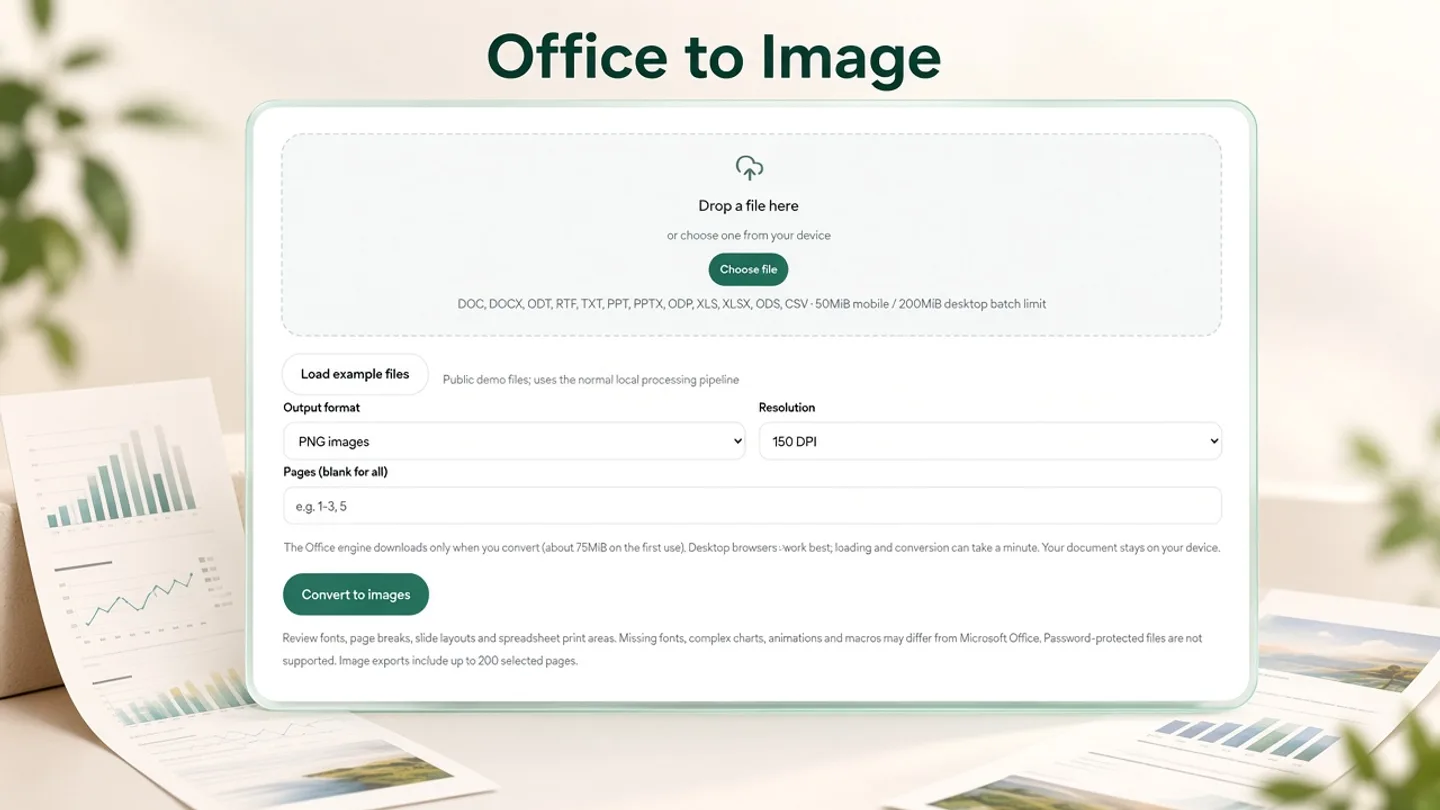
An Office file may be difficult to preview in a message where a simple image is easier to open. Page-image output can help, provided the selected pages remain readable and complete. Keep the original for editing and use PDF separately when a document handoff is more appropriate.
This guide uses Klyvero Tools Office to Image for a focused workflow: make page-image previews from Office files deliberately. The aim is a result you can inspect and use with confidence, while keeping the source available for corrections.
Open the tool to follow this Office to Image workflow in your browser.
Prepare the source layout before rendering
Open the source in its normal editing application when possible and check that it contains the content you intend to share. Fix obvious page breaks, hidden or clipped content and missing fonts before converting. A local converter cannot infer which part of a workbook or deck you intended a recipient to see.
A spreadsheet follows its saved print areas, while a presentation needs a useful static slide layout. For reports, inspect long paragraphs and tables around page boundaries. Keep the editable source and a known-good reference so you can identify conversion differences. Correct a problem in the source and convert again instead of treating a visually broken export as final.
Choose settings for the task
The documented inputs are DOC, DOCX, PPT, PPTX, XLS, XLSX and OpenDocument files. Choose PNG, JPG or WebP for this workflow. The local LibreOffice engine renders common Office layouts, but missing fonts and advanced features can change the result. Password-protected files are not supported. Keep the source open for comparison, and choose a current desktop browser when possible.
Use Office to Image step by step
- Choose a supported unprotected source document.
- Select the required output and any relevant page range.
- Start conversion and allow the local engine to initialize.
- Review rendered pages against the source layout.
- Download the checked result before clearing the selected file.
Work through a small representative input before applying the operation more broadly. Keep track of the settings you chose so an unexpected result can be reproduced and corrected.
A practical example
For a mixed project update, export the Word cover, one presentation slide and a spreadsheet summary as separate image jobs. Use the same intended display size when checking them. Confirm each output page belongs to the right source before naming and placing the images in the update.
Understand the limitations
The first conversion downloads a large local Office engine and uses substantial memory. Macros and animations are not included. Engine downloads are not document uploads: the source bytes are processed in a browser worker.
PDF can retain document text where the conversion supports it, while PNG, JPG and WebP exports contain rendered page pictures. Image export supports up to 200 selected pages in the documented workflow. Choose a smaller range for a larger document and check that every selected output has been downloaded.
Review the result before using it
Check report text, slide labels and spreadsheet totals at their final viewing size. Rendered images do not retain formulas, links or editable text, so provide another format when those behaviors matter.
The live tool describes local browser processing. Processing assets may still need to download before the operation can run. Save the finished output before clearing the tool or leaving the tab, and confirm that the copy you use is the reviewed result.
Frequently asked questions
Will the layout exactly match Microsoft Office?
Not always. Fonts, complex charts and advanced document features can render differently. Review the output and correct the original when a layout change matters.
Can I use a page image as the editable original?
No. A rendered image is a static visual. It does not retain live formulas, presentation interactions or editable Word text. Keep the source and choose PDF separately when document text is needed.
Does a completed operation mean the result is ready to share?
Open or inspect the saved output first. Confirm the settings, selected content and destination requirements, and keep the source until the reviewed copy works as intended.
Useful next steps
- Merge PDF: A related pdf workflow when your next task needs it.
- Image to PDF: A related pdf workflow when your next task needs it.
- Explore Klyvero Labs products: Browse our apps and browser tools.
Ready to try this workflow? Open Office to Image, start with a representative input and review the saved result. Try the tool free.
Back to all articles