Make a grayscale PDF and check what rasterization changes
A color handout needs a grayscale version for a printing or sharing workflow.

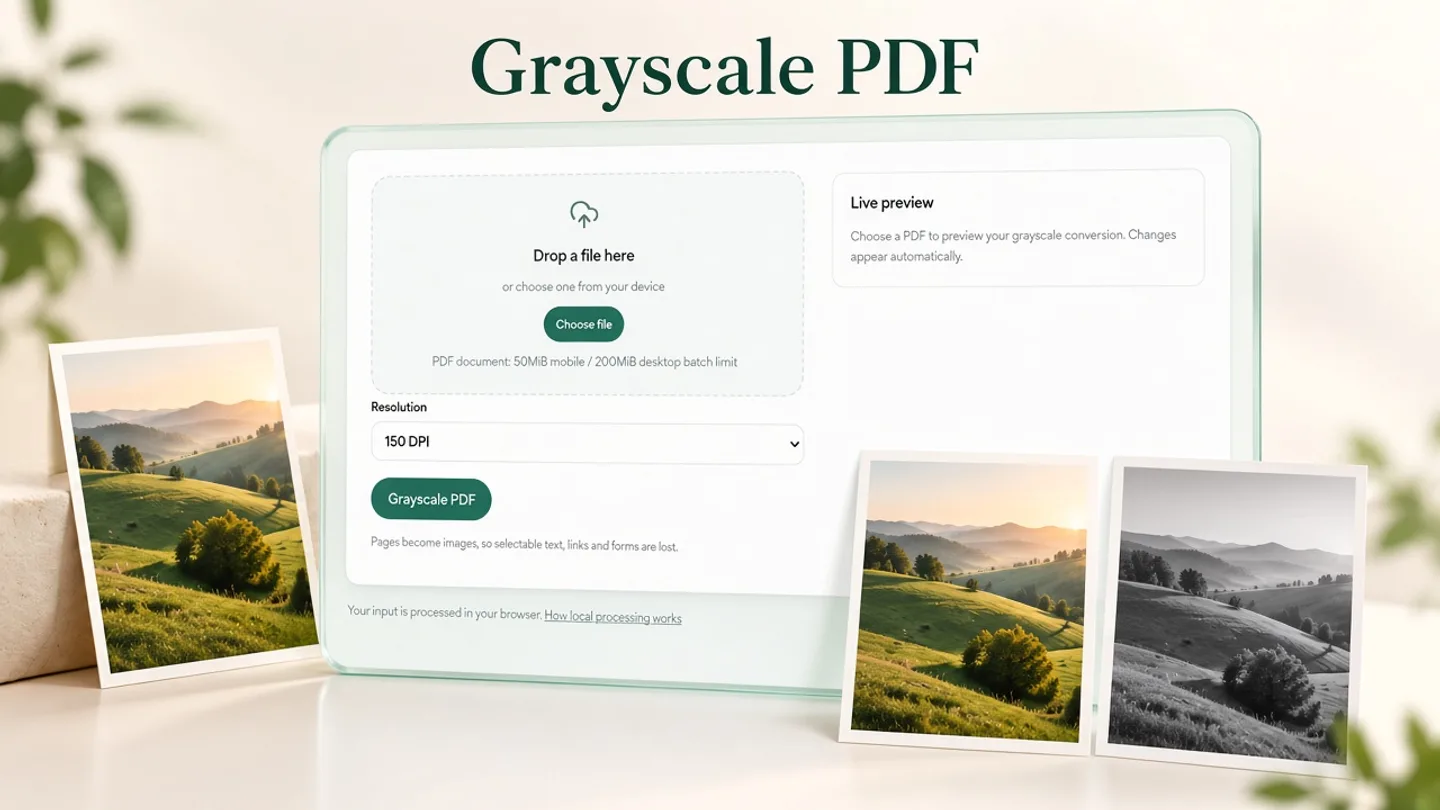
A color handout needs a grayscale version for a printing or sharing workflow. The visual change is easy to describe, but this tool also changes the page representation. Understanding that tradeoff helps you choose whether grayscale appearance is actually the operation you need.
This guide uses Klyvero Tools Grayscale PDF for a focused workflow: make a grayscale PDF and check what rasterization changes. The aim is a result you can inspect and use with confidence, while keeping the source available for corrections.
Open the tool to follow this Grayscale PDF workflow in your browser.
Identify pages by their original positions
Keep the original PDF and make a note of the pages involved in your task. A viewer’s page position can differ from the number printed inside the document because a cover or introduction comes first. When a control accepts page ranges, use the original positions expected by that control and check the first affected thumbnail.
Use a small representative section when exploring a new operation. Include a normal text page and a page with a diagram or scan if the document has both. A successful first page does not establish that every page has the same structure. After exporting, check the final page as well, because a missing appendix or unintended range can be easy to overlook.
Choose settings for the task
Choose a rendering resolution and convert the pages. This workflow renders each page as a grayscale image and builds a new PDF from those pictures. Existing selectable text, interactive fields and links do not remain interactive in the resulting image pages. Keep the original document for editing and digital use.
Use Grayscale PDF step by step
- Keep the original PDF and choose the source file.
- Select a resolution appropriate to the intended use.
- Convert to the grayscale image-page PDF.
- Inspect small text, charts and formerly colored distinctions.
- Download and check the final byte size and page count.
Work through a small representative input before applying the operation more broadly. Keep track of the settings you chose so an unexpected result can be reproduced and corrected.
A practical example
For a color training handout, try 150 DPI as an everyday example and inspect charts and small labels. Two differently colored series can become similar gray shades. Check whether a caption, line style or source edit is needed so readers can still distinguish them after conversion.
Understand the limitations
Rasterization removes selectable text, links and form behavior. Converting text-heavy or vector pages to images can increase file size even though the colors are simplified.
A rewritten PDF can behave differently from the original at the document level. If signatures, forms, bookmarks or other interactive features matter, check them separately in a suitable viewer rather than assuming that intact page thumbnails prove everything survived. Keep signed originals when signature validity matters.
Review the result before using it
Inspect small text at the intended viewing or print size, and compare the actual file bytes with the original. Increasing DPI creates more pixels and can make files larger. A grayscale export is useful for its appearance; it is not automatically a compression technique.
The live tool describes local browser processing. Processing assets may still need to download before the operation can run. Save the finished output before clearing the tool or leaving the tab, and confirm that the copy you use is the reviewed result.
Frequently asked questions
Will grayscale always make the PDF smaller?
No. Rendered image pages can require more bytes than the original text or vector content. Use lossless compression when reducing overhead is the goal.
Do I still need the original PDF?
Yes. Keep it for comparison and for any document features needed later. A downloaded copy is a separate result, and a change that solves one task may not preserve every behavior of the source.
Does a completed operation mean the result is ready to share?
Open or inspect the saved output first. Confirm the settings, selected content and destination requirements, and keep the source until the reviewed copy works as intended.
Useful next steps
- Merge PDF: A related pdf workflow when your next task needs it.
- Image to PDF: A related pdf workflow when your next task needs it.
- Explore Klyvero Labs products: Browse our apps and browser tools.
Ready to try this workflow? Open Grayscale PDF, start with a representative input and review the saved result. Try the tool free.
Back to all articles