Build a readable meme from your own pictures
A meme depends on a quick visual idea and a caption that can be read at a glance.

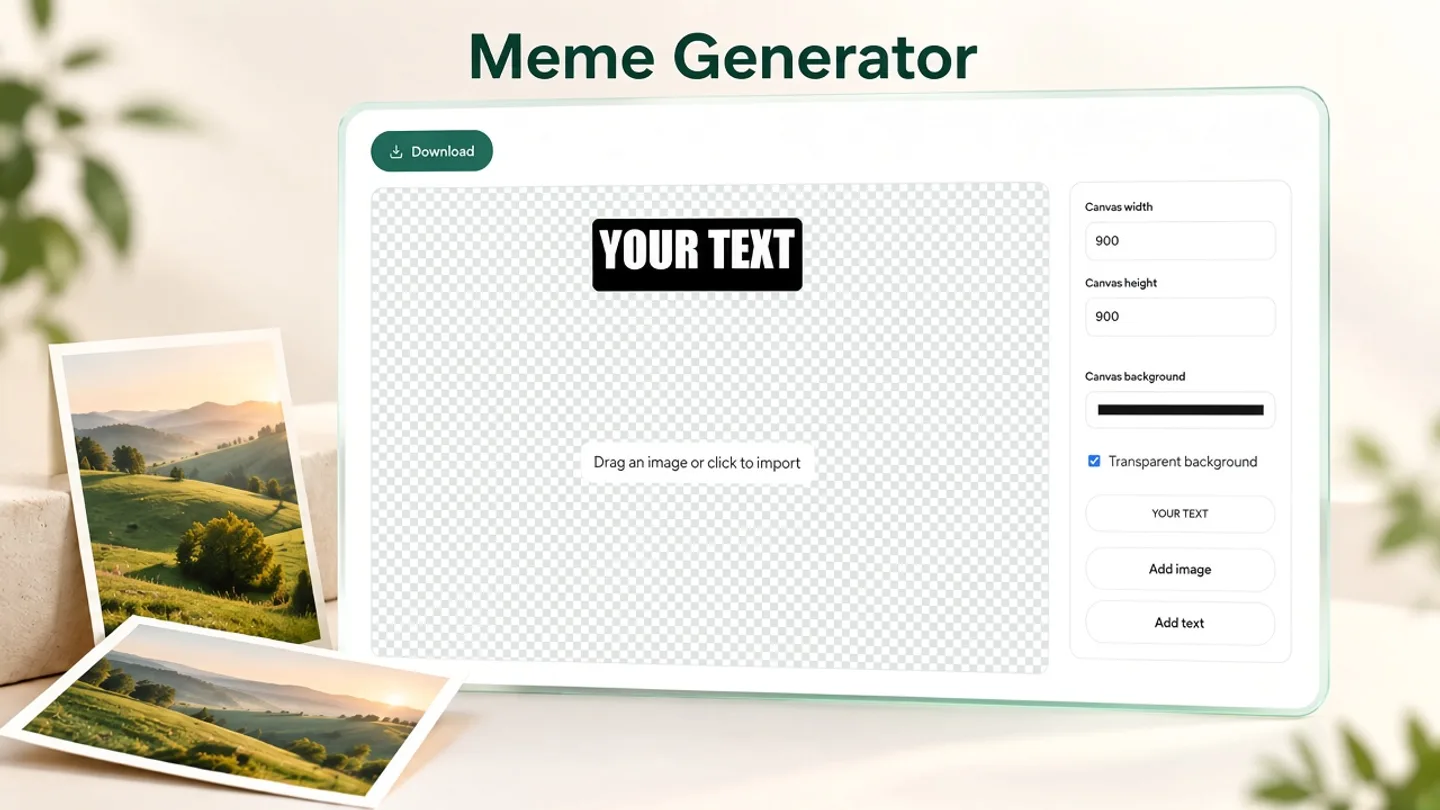
A meme depends on a quick visual idea and a caption that can be read at a glance. Long text or crowded image placement can hide the joke. Start with a small number of pictures and a short message before adjusting fonts and outlines.
This guide uses Klyvero Tools Meme Generator for a focused workflow: build a readable meme from your own pictures. The aim is a result you can inspect and use with confidence, while keeping the source available for corrections.
Open the tool to follow this Meme Generator workflow in your browser.
Start with the destination and a source copy
Write down the destination’s requirements before editing: image dimensions, accepted formats, maximum file size and whether transparency is useful. These describe different properties. Meeting one does not automatically meet the others. Keep an untouched source so you can make a second version without repeatedly changing an already exported file.
Use a representative image for the first pass. A batch can contain different aspect ratios, subjects and levels of detail, so a setting that works for one picture may need reviewing on the others. Compare the first result at the actual viewing size as well as a close zoom. Faces, fine text, thin lines and soft gradients reveal different kinds of problems.
Choose settings for the task
The tool uses your local images rather than an included template library. It supports up to six pictures and ten captions. A pair starts above and below, while four pictures start in the corners. You can drag pictures from their centers, resize from corner handles and position captions individually.
Use Meme Generator step by step
- Choose the local pictures that communicate the idea.
- Arrange and resize each picture.
- Add short captions and adjust position, font and contrast.
- Inspect the whole composition at a small viewing size.
- Download a still PNG after checking the final crop.
Work through a small representative input before applying the operation more broadly. Keep track of the settings you chose so an unexpected result can be reproduced and corrected.
A practical example
For a four-picture comparison, add four images and check the initial arrangement. Place a short caption on each, then add a dark text background where the photo is busy. Keep faces and the important visual detail visible. Export a draft and view it at message-thumbnail size to see whether the caption still works.
Understand the limitations
The export is a still PNG. There is no third-party template library or animated-meme export in this workflow. Use a separate animation tool when motion is required.
Keep the edited copy separate from the source and inspect its output format before clearing the tool. If another step is needed, such as resizing after a crop, use the saved result deliberately and inspect again. Repeated exports can change a picture differently from previewing edits from an original.
Review the result before using it
Check how text wraps, whether outlines or backgrounds improve contrast, and whether a caption crosses an image edge. Use pictures you are entitled to share. A local editor makes arranging the content easier, but it does not supply rights to someone else’s photograph.
The live tool describes local browser processing. Processing assets may still need to download before the operation can run. Save the finished output before clearing the tool or leaving the tab, and confirm that the copy you use is the reviewed result.
Frequently asked questions
Can I make an animated meme here?
The output is a still PNG. Use a separate frame-animation workflow if you need movement.
What should I compare after saving?
Check dimensions, format, actual bytes and the visual detail needed by the recipient. Then try the saved file in its destination. A preview alone does not establish that a form will accept the export.
Does a completed operation mean the result is ready to share?
Open or inspect the saved output first. Confirm the settings, selected content and destination requirements, and keep the source until the reviewed copy works as intended.
Useful next steps
- Image Compressor: A related images workflow when your next task needs it.
- Image Resizer: A related images workflow when your next task needs it.
- Explore Klyvero Labs products: Browse our apps and browser tools.
Ready to try this workflow? Open Meme Generator, start with a representative input and review the saved result. Try the tool free.
Back to all articles