Extract text from a screenshot and verify the details
A screenshot contains words you want to quote or edit, but copying the picture does not give you editable text.

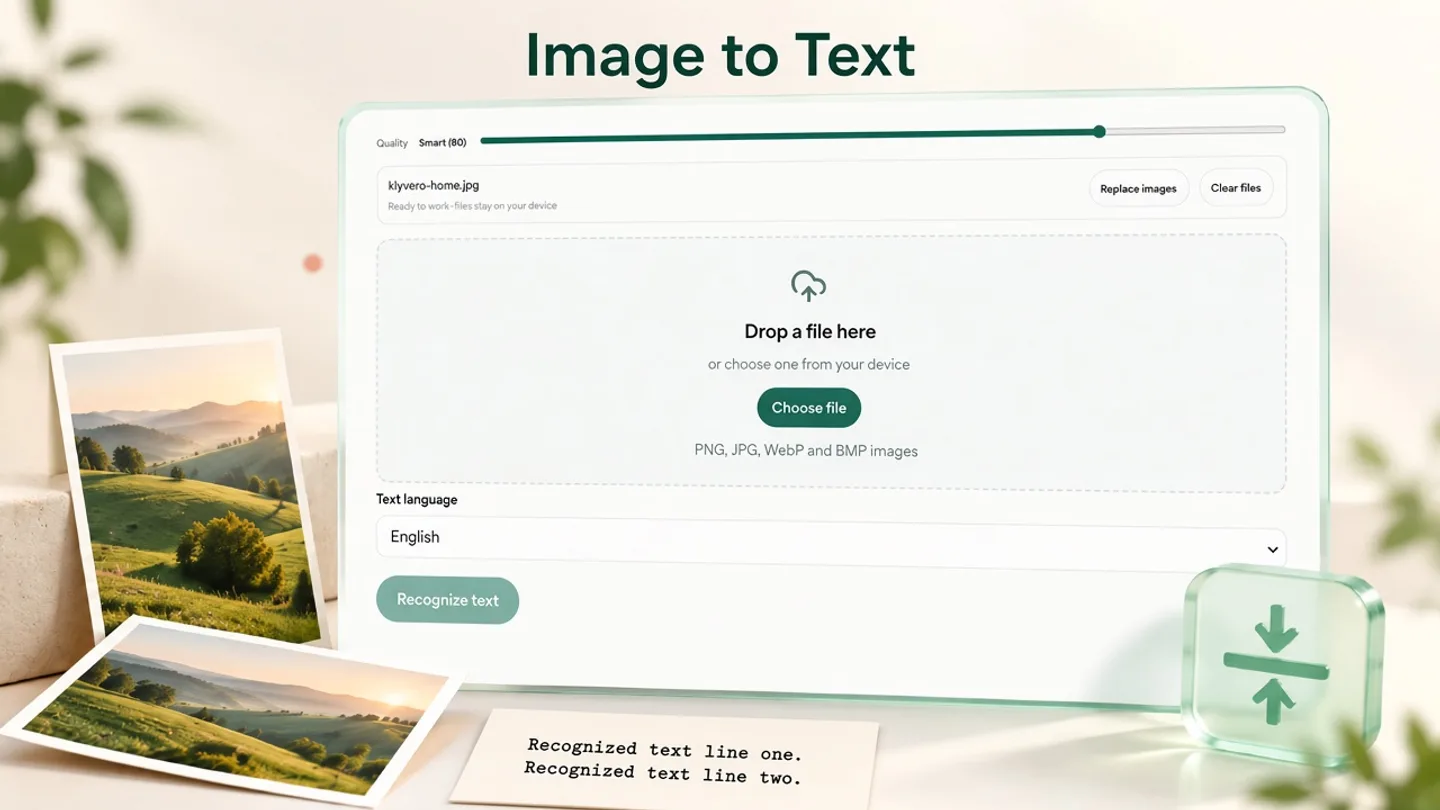
A screenshot contains words you want to quote or edit, but copying the picture does not give you editable text. OCR attempts to recognize those words. A useful workflow starts with a clear image and ends with a comparison against the source.
This guide uses Klyvero Tools Image to Text (OCR) for a focused workflow: extract text from a screenshot and verify the details. The aim is a result you can inspect and use with confidence, while keeping the source available for corrections.
Open the tool to follow this Image to Text (OCR) workflow in your browser.
Prepare a clear source before recognition
OCR depends on the letters visible in the input. Choose a sharp source, keep the page upright and retain the full edges of every line. Heavy shadows, skew and tiny text reduce the information available to the recognizer. Improving the source is often more useful than repeating recognition on the same blurred image.
Start with one representative page. Compare names, dates, totals and identifiers character by character before processing a long batch. A plausible-looking word can still be wrong, and a missing minus sign or decimal point can change the meaning. For multiple columns, check the reading order separately from whether individual words were recognized.
Choose settings for the task
The live image OCR tool accepts JPG/JPEG, PNG, WebP and BMP. Choose the language that matches the image; the documented choices include English, Spanish, French, German, Portuguese, Italian, Arabic, Japanese and Simplified Chinese. Use the separate document OCR workflow for PDFs or Word files rather than expecting this image input to handle them.
Use Image to Text (OCR) step by step
- Choose a sharp supported image.
- Select the matching recognition language.
- Crop irrelevant borders beforehand when needed.
- Recognize and compare the resulting text with the source.
- Copy or download TXT after checking important details.
Work through a small representative input before applying the operation more broadly. Keep track of the settings you chose so an unexpected result can be reproduced and corrected.
A practical example
For a photographed English notice, crop away irrelevant surroundings while retaining every line. Keep the words upright and large enough to read. Recognize the image, then compare names, dates, punctuation and any reference number with the photograph. Copying the text into a message should come after that check, not immediately after the progress indicator finishes.
Understand the limitations
The result is plain text, not a recreated Word layout or a searchable PDF. Handwriting, skew, low resolution and complex page design can produce errors. OCR output is a draft that needs review.
Plain-text output needs its own structure after recognition. Paragraph spacing, columns and tables may require manual editing, but correct the characters first. Keep the source available until the reviewed text has been saved and used successfully in the receiving application.
Review the result before using it
Read the first and last lines to catch missing edges. Inspect similar-looking characters such as O and 0 or l and 1. Multi-column content may need rearranging after recognition. If the image is blurred, retake it or use a sharper source instead of repeatedly recognizing the same unreadable pixels.
The live tool describes local browser processing. Processing assets may still need to download before the operation can run. Save the finished output before clearing the tool or leaving the tab, and confirm that the copy you use is the reviewed result.
Frequently asked questions
Will OCR preserve the screenshot’s layout?
No. The output is plain text. Headings, columns and tables may need manual restructuring after you verify the recognized characters.
Can I use the recognized text without checking it?
Review it against the source first. Recognition can omit or misread characters and change reading order. Important values need direct comparison even when the surrounding paragraph looks fluent.
Does a completed operation mean the result is ready to share?
Open or inspect the saved output first. Confirm the settings, selected content and destination requirements, and keep the source until the reviewed copy works as intended.
Useful next steps
- Image Compressor: A related images workflow when your next task needs it.
- Image Resizer: A related images workflow when your next task needs it.
- Explore Klyvero Labs products: Browse our apps and browser tools.
Ready to try this workflow? Open Image to Text (OCR), start with a representative input and review the saved result. Try the tool free.
Back to all articles