Create a QR code people can actually scan
Turn a link into a useful QR code. Choose a clear destination, keep the design readable and test the downloaded PNG or SVG before printing.

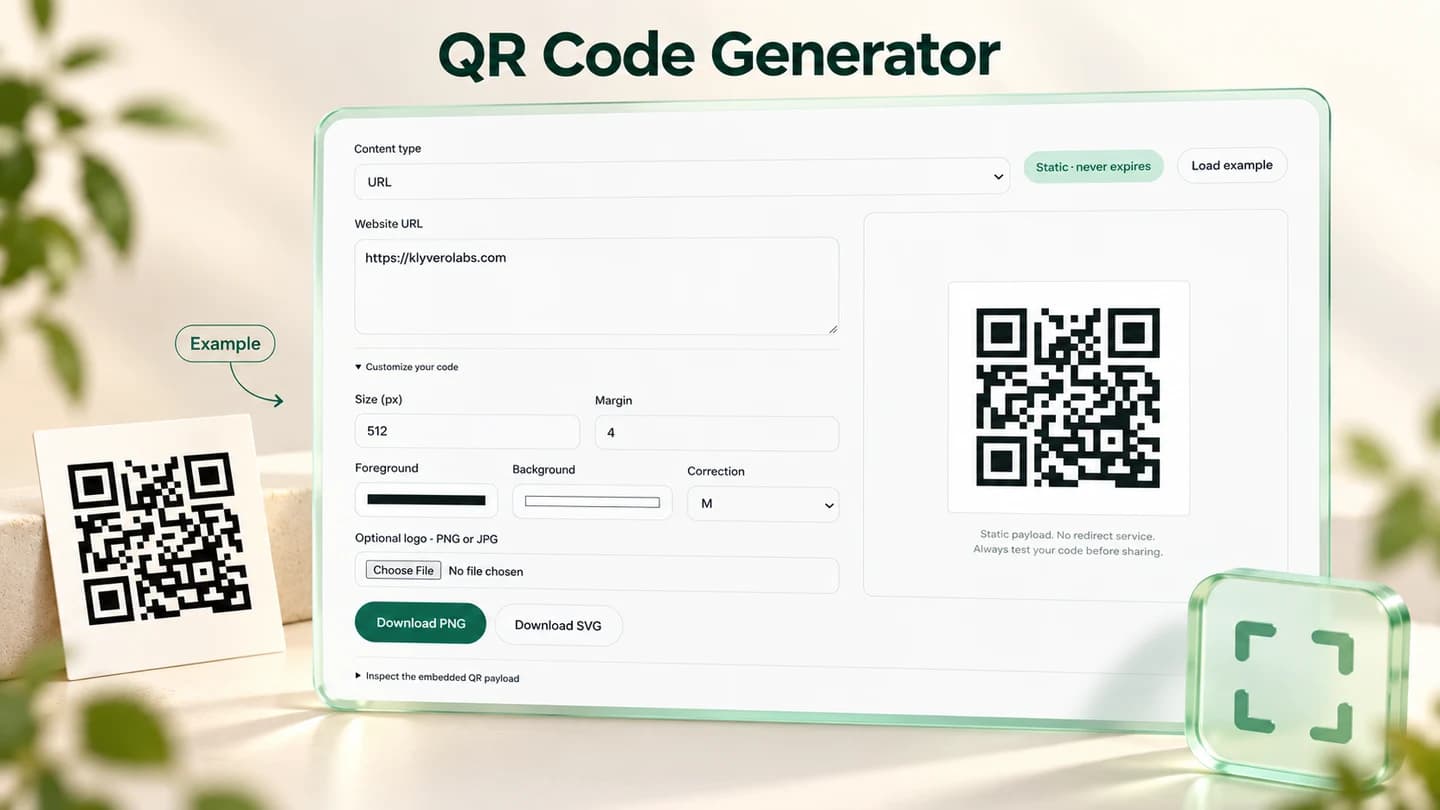
A QR code on a menu, poster or business card has one job: help someone reach the right information without typing it. A code that looks attractive but opens an outdated page, loses its white border or becomes too small to scan creates extra work instead.
This guide walks through a practical website-link workflow using Klyvero Tools QR Code Generator. It is useful for small businesses, event organizers and anyone sharing a page in print.
Open the tool to create a static code and review its preview before downloading.
Choose a destination you can maintain
Open the destination page before making the code. Confirm that it loads, shows the expected information and works on a phone. Copy the full address, including https://, rather than relying on someone to guess the protocol. For a printed handout, a stable page on your own website is easier to maintain than a temporary document link.
The generator creates static QR codes: the content is stored directly in the symbol. You cannot replace the embedded address after printing the code. If you control the linked web page, you can update that page’s content while keeping its address. If the address itself changes, generate a new code and replace the printed material.
Create and download a website QR code
- Open QR Code Generator and choose URL from Content type. Enter the public page you want people to visit.
- Review the generated QR preview. Keep the destination short enough to recognize and double-check spelling before downloading.
- Expand Customize your code to inspect Size, Margin, Foreground, Background and Correction. Start with a dark foreground, white background and a visible margin.
- Leave the optional logo empty for your first version. Download PNG for a raster image or SVG for artwork that needs to scale.
- Scan the downloaded file with a phone, open the destination and check the page. Repeat the check after placing the code in its final design.
The current menu also includes Text, Wi-Fi, Email, Phone, SMS, vCard and WhatsApp. Choose the content type that matches the action you want. This article focuses on URL codes; contact and network codes need their own field checks before you share them.
Keep the code easy to distinguish
Treat the empty border around the code as part of the code. Do not crop it away to fit a tight layout or run a patterned background directly against the dark modules. Keep nearby captions, borders and decorative marks outside that quiet area.
Color customization is useful, but readability comes first. Pale foregrounds and similar foreground and background colors make the pattern harder to distinguish. Test a plain version before introducing brand colors. If a design includes a logo, keep it small and test it with higher error correction; an attractive preview alone does not prove that the finished code will scan.
Example: a QR code for a printed service card
Suppose you want a card to open your business homepage. In the screenshot, the URL field contains the public Klyvero Labs homepage, with size 512, margin 4 and correction M. The live tool shows a generated preview and both download options. Those settings describe this example, not a universal print-size recommendation.
Place your downloaded code beside a clear instruction such as “Scan to view our services.” Include a readable website address elsewhere on the card so a reader has another way to visit. Print one proof at the intended size before ordering a full batch. Try scanning it under the lighting and distance your visitors are likely to encounter.
Choose PNG or SVG for the final layout
PNG is convenient for documents, slides and tools that expect a normal image file. Avoid enlarging a small raster export until its edges become soft. SVG is a useful option when a designer needs to scale the code for a larger layout. Confirm that the application importing the SVG preserves the complete symbol and margin.
Check the final exported poster or document, not just the original download. Image compression, resizing, busy backgrounds and print reproduction can all change how the placed code appears. Keep a clean source copy so you can replace a damaged or heavily compressed version without rebuilding the code from scratch.
Check the destination after sharing
A static code does not depend on a Klyvero redirect subscription or service expiry, but its destination can still stop working. A removed page, changed phone number or expired domain can make an old printed code unhelpful. Keep ownership and maintenance of the destination in your publishing checklist.
The tool generates codes in your browser. That does not make the content hidden: anyone with the image can read its embedded payload. Use public information for public handouts, and remember that a Wi-Fi code exposes the network credentials it contains. For a website code, make the final check simple: scan, inspect the address and open the expected page.
Frequently asked questions
Can I change a printed QR code later?
You cannot edit its static embedded content. Keep the linked page address stable or generate and print a replacement code.
Does the code expire?
There is no Klyvero service expiry for the static code. Its destination must still remain available.
Why does a customized code fail to scan?
Try a darker foreground, lighter background, more margin or a smaller logo. Test the downloaded file and final printed layout.
Should I download PNG or SVG?
PNG works for many everyday image workflows. SVG is useful for scalable artwork when the receiving design application supports it.
Useful next steps
- Explore Klyvero Tools: Find other browser utilities for preparing your materials.
- Resize images without stretching: Understand dimensions before placing images in a layout.
Ready to share a useful link? Create your code, download it and test the final version before printing. Try the tool free.
Back to all articles